Connect TradingView Strategies to AlphaInsider
Step-by-step guide to connecting any TradingView strategy to AlphaInsider with webhook alerts so you can forward test, track, and auto trade.

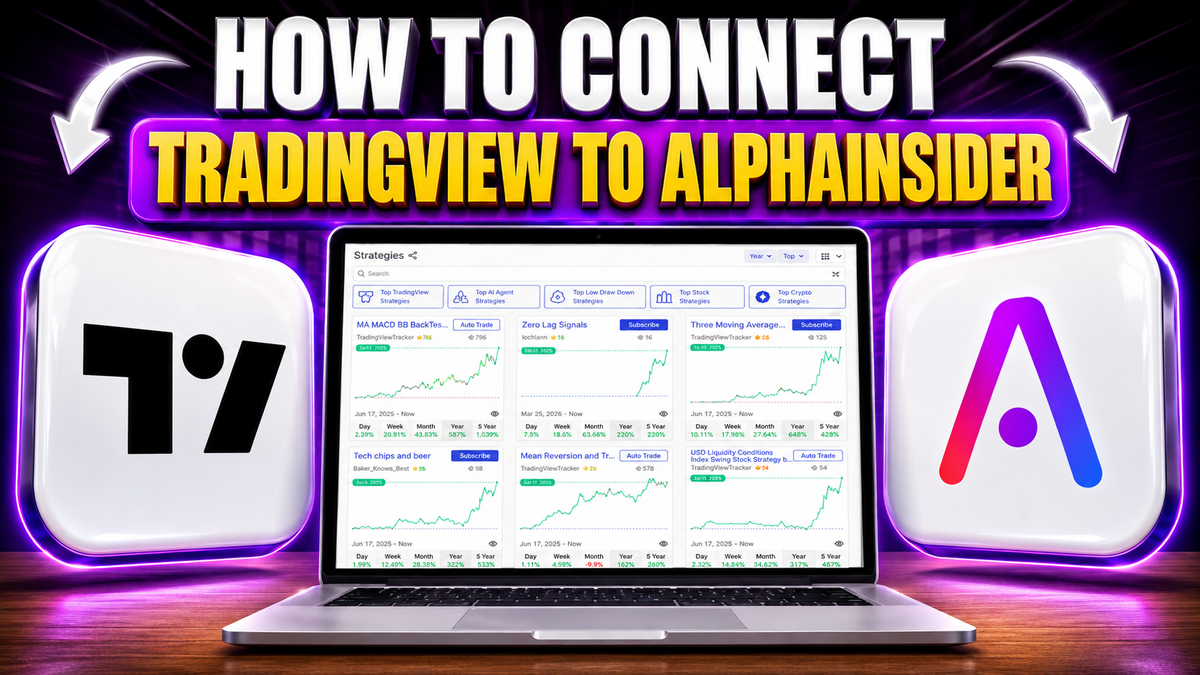
If you've built your own TradingView strategy — or found an open-source one you want to make your own — you can connect a TradingView strategy to AlphaInsider in just a few steps and start tracking it, forward testing it, or even auto trading it with your own broker. The connection works through TradingView's webhook alerts: every time your Pine Script strategy fires, the signal is sent straight to AlphaInsider, where your trades are logged and tracked live.
This guide walks through the entire setup from start to finish: creating the alert in TradingView, configuring the webhook and message, creating your strategy on AlphaInsider, and wiring up the strategy ID, stock ID, and API token so everything fires automatically.
By the end, you'll have a live connection that lets you validate your backtest against real forward-tested results — one of the best ways to catch overfitting or repainting before you ever commit real money.
Table of Contents
- Key Takeaways
- Why Connect a TradingView Strategy to AlphaInsider?
- Prerequisites: What You'll Need
- Step-by-Step Guide
- Step 1: Create Your Free AlphaInsider Account
- Step 2: Open Your Strategy on TradingView and Add an Alert
- Step 3: Check the Condition, Interval, and Expiration
- Step 4: Add the AlphaInsider Webhook URL
- Step 5: Replace the Alert Message
- Step 6: Create a New Strategy on AlphaInsider
- Step 7: Add the Strategy ID
- Step 8: Add the Stock ID
- Step 9: Set Leverage and Pyramiding
- Step 10: Create and Add Your API Token
- Step 11: Save the Alert and Confirm It's Active
- A Closer Look at Pyramiding
- Tips and Best Practices
- Common Mistakes to Avoid
- What the Final Result Looks Like
- FAQ
- Conclusion
Key Takeaways
- You can connect any TradingView strategy you have Pine Script access to — your own or an open-source one — directly to AlphaInsider using webhook alerts.
- An AlphaInsider account is free, but the connection requires TradingView's webhook alert capability, which is not included in TradingView's free plan.
- The setup lives in one TradingView alert: the AlphaInsider webhook URL goes in the Notifications tab, and the AlphaInsider message template replaces the default alert message.
- You'll fill in four key values in the message: the strategy ID (from your AlphaInsider strategy's URL), the stock ID (copied from the new order search), leverage (up to 2x), and pyramiding.
- Your API token is created in AlphaInsider's developer settings — one key can be reused across multiple strategies.
- Forward testing on AlphaInsider uses a paper trading balance, so you can validate a backtest against live performance and catch curve fitting or repainting before risking real funds.
- Strategies can be set to public, private, or paid — and once connected, you can optionally auto trade with your own broker.
Why Connect a TradingView Strategy to AlphaInsider?
A backtest only tells you how a strategy would have traded. Two of the biggest concerns with any Pine Script strategy are overly curve-fit results and repainting — where the live behavior doesn't match what the backtest showed.
Connecting your strategy to AlphaInsider solves this in three ways:
- Track it. Every signal your strategy fires gets logged automatically, so you build a live, verifiable trade history.
- Forward test it. Your strategy trades against a paper balance, letting you compare live results directly against your backtest.
- Automate it. Once you trust the strategy, you can flip on auto trading and execute it with your own broker.
And because the connection works with any strategy where you have access to the Pine Script code, this isn't limited to strategies you wrote yourself.
Prerequisites: What You'll Need
Before starting, make sure you have:
- A free AlphaInsider account — signing up costs nothing.
- A TradingView account with webhook alert capability — this is the one part that isn't free. Sending webhook alerts is a paid TradingView feature, and it's required for this process.
- A trading strategy on TradingView — your own, or any strategy where you have access to the Pine Script code, loaded onto your chart.
- About 10–15 minutes for the full setup.
- Skill level: beginner-friendly — no coding required, just careful copy-and-paste.
Step-by-Step Guide
Step 1: Create Your Free AlphaInsider Account
Sign up for AlphaInsider for free. Once logged in, you'll land on the main page with the strategy marketplace. Scroll down to the Resources tab, and on the left-hand side you'll find an option labeled Connect to TradingView.
This page contains a step-by-step written walkthrough of the whole process — plus the two things you'll copy later: the webhook URL and the alert message template. Keep this page handy.
Step 2: Open Your Strategy on TradingView and Add an Alert
Log into TradingView with your strategy applied to the chart. In the example from the video, that's a momentum breakout strategy running on ETH/USD with a backtest visible.
Find your strategy in the top left of the chart, click the three dots next to it, and select the top option: Add alert on your strategy. A settings window will open — this is where the entire TradingView side of the connection happens.
Step 3: Check the Condition, Interval, and Expiration
Three settings to verify before anything else:
- Condition — make sure the condition is set to the exact strategy you want to bring over to AlphaInsider.
- Interval — when it says "same as chart," the alert will fire based on the timeframe your chart is currently set to (for example, the 1-day timeframe). Once you save the alert, it keeps firing on these conditions even if you change your chart later — so set the timeframe you actually want before creating the alert.
- Expiration — set this to open-ended, which means the alert never expires until you manually delete it.
Step 4: Add the AlphaInsider Webhook URL
Go to the Notifications tab of the alert window. You can optionally enable app notifications, toast notifications, emails, or sounds — that's entirely up to you, and if you run many strategies you may prefer to keep these off to avoid being bombarded.
The one thing that is not optional is the webhook:
- Copy the AlphaInsider webhook URL from the Connect to TradingView resources page (it's under step two, highlighted on the page).
- Paste it into the Webhook URL field in TradingView.
- Make sure the webhook URL checkbox is ticked.
- Click Apply.
If you've done this before, you may see an old URL in that field — replace it with the current one from the resources page.
Step 5: Replace the Alert Message
Go to the Message section of the alert. Delete everything TradingView puts there by default — it won't serve what you need.
Back on the AlphaInsider resources page, copy the full alert message template using the copy button in the top right of the code box. Paste it into TradingView's message field, replacing the default content completely.
Then give the alert a name you'll recognize — something like "ETH Claude Breakout 1 Day" — so you can identify it later among your other alerts.
The template has a few fields you'll fill in over the next steps: the strategy ID, the stock ID, leverage, pyramiding, and the API token. Leave the action field alone — you don't need to change anything there.
Step 6: Create a New Strategy on AlphaInsider
Head back to AlphaInsider and go to your Portfolio tab in the top right, then click New Strategy. Fill in the details:
- Name — use the same name you gave the alert so everything stays consistent.
- Description — optional; you can include a link to your public TradingView strategy page if you have one.
- Starting balance — this is your initial paper trading balance. No real funds are committed until you connect a broker and build a trading bot. The example uses $1,000, but any amount works — it simply models how the strategy trades so you can watch P&L over time.
- Stock or crypto — match this to what your strategy trades. The example runs on ETH/USD, so it's a crypto strategy.
- Visibility — choose public, private, or paid. Paid means subscribers pay you a monthly price to access, copy, or auto trade your strategy. Note that stock strategies can't be made paid unless you have the proper documentation to give financial advice — reach out to AlphaInsider or see their strategy monetization video for details.
Click Create. On your new strategy's page, the three-dot icon in the top right has a Connections option that brings up the same TradingView setup page — so you always have easy access to it.
Step 7: Add the Strategy ID
The strategy ID lives in the URL bar when you're viewing your new strategy's page. It's everything after the last slash — and if you switch the chart view to the monthly timeframe, you'll see it clearly as everything after the last slash and right before the question mark.
Grab that ID and paste it into the strategy ID field in your TradingView alert message, making sure it sits between the quotes.
Step 8: Add the Stock ID
Now for the stock ID:
- On AlphaInsider, go to the New Order section of the timeline.
- Search for the ticker you're trading — the search covers both stocks and crypto. In this example, that's Ethereum.
- Click the ticker, then use the copy box to copy the stock ID — for example,
ETH-USD:COINBASE. - Paste it into the stock ID field in the TradingView alert message, again between the quotes.
Step 9: Set Leverage and Pyramiding
Two quick settings in the alert message:
- Leverage — you can go up to 2x if you'd like. The example leaves it at 1.
- Pyramiding — leave it at 1 unless your strategy actually uses pyramiding. (More on this below — it matters more than it looks.)
- Strategy market position — leave this exactly as it is in the template.
Step 10: Create and Add Your API Token
The last piece is the API token:
- On AlphaInsider, go to your strategy's three dots → Connections, scroll down, and open the developer settings page in a new tab.
- Name your API key, then click the TradingView option — this automatically selects only the permissions you need.
- Enter your password and create the key.
- Save the key somewhere safe. One key can be reused across multiple trading strategies, so you don't have to create a new one every time.
- Paste the key into the API token field in the TradingView alert message.
Step 11: Save the Alert and Confirm It's Active
Click Create on the TradingView alert. To confirm everything is live, click the little clock alert icon in TradingView — under Alerts, you'll see your new strategy listed as active. From there you can easily pause or delete the alert in the top right whenever you want.
That's it. Every time your strategy fires on TradingView, the signal is sent directly to AlphaInsider, and your trades are tracked and logged automatically.
A Closer Look at Pyramiding
Pyramiding deserves special attention because a mismatch here means AlphaInsider won't model your strategy the way it actually trades.
On TradingView, open your strategy's settings and check the Properties tab for the pyramiding option. Here's how to translate it:
- Pyramiding of 0 or 1 on TradingView — these mean the same thing. Leave pyramiding set to 1 in your alert.
- Pyramiding above 1 — if your strategy genuinely pyramids into positions, set the value in your alert to match your strategy's setting. You can set it anywhere between 1 and 100.
The rule is simple: the pyramiding value in your AlphaInsider alert should mirror the value your TradingView backtest actually uses.
Tips and Best Practices
- Set your chart timeframe before creating the alert. The interval fires based on how your chart is set at creation time — the alert stays live on those conditions even after you close the window.
- Use consistent naming. Give the TradingView alert and the AlphaInsider strategy the same name so you can match them at a glance when you're running several strategies.
- Reuse your API key. One saved key works across multiple strategies — no need to generate a fresh key for each connection.
- Paste IDs between the quotes. Both the strategy ID and stock ID must sit inside the quotation marks in the message template.
- Forward test before you automate. The whole point of the paper balance is validating that live signals match your backtest. Let it run before connecting real money.
- Trim your notifications. If you run multiple strategies, disable the email/app/sound notifications you don't need — only the webhook is required.
Common Mistakes to Avoid
- Leaving TradingView's default alert message in place. The default message must be deleted completely and replaced with AlphaInsider's template, or signals won't be processed.
- Forgetting to tick the webhook URL checkbox. Pasting the URL isn't enough — the checkbox must be enabled and applied.
- Using an old webhook URL. If you've connected strategies before, double-check that the URL matches the current one on the resources page.
- Grabbing the wrong part of the URL for the strategy ID. It's everything after the last slash, before the question mark.
- Mismatched pyramiding. If your strategy pyramids and your alert says 1, your tracked results won't reflect reality.
- Setting an expiration on the alert. Use open-ended, or your connection will silently stop when the alert expires.
- Assuming a free TradingView plan is enough. Webhook alerts are a paid TradingView capability — the AlphaInsider side is free, but the webhook side isn't.
What the Final Result Looks Like
Once connected, your strategy appears on AlphaInsider with its name, your description (and TradingView link, if you added one), and every trade tracked live as signals come in. You can watch the paper P&L develop over time and compare it against your backtest.
When you're confident in the strategy, the final step is clicking auto trade to execute it with your own broker — AlphaInsider covers that process in its follow-up videos.
FAQ
Is connecting TradingView to AlphaInsider free?
The AlphaInsider account is completely free. However, the connection relies on TradingView's webhook alerts, which are not available on TradingView's free plan — you'll need a TradingView subscription that includes webhook capability.
Can I connect a strategy I didn't write myself?
Yes. You can connect any TradingView strategy where you have access to the Pine Script code — including open-source strategies you want to make your own.
Does this use real money?
No. The starting balance you set on AlphaInsider is a paper trading balance. No real funds are committed until you deliberately connect your broker and build a trading bot for auto trading.
What is forward testing and why does it matter?
Forward testing runs your strategy on live market signals with paper money, so you can compare real-time behavior against your backtest. It's the best way to catch curve fitting and repainting — cases where a strategy looks great historically but doesn't trade that way live.
Where do I find the strategy ID?
It's in the URL bar when viewing your strategy's page on AlphaInsider — everything after the last slash, right before the question mark.
Where do I find the stock ID?
Go to the New Order section of the AlphaInsider timeline, search for your ticker (stocks and crypto both work), click it, and use the copy box — for example, ETH-USD:COINBASE. Paste it between the quotes in the alert message.
How should I set pyramiding?
Check your strategy's Properties tab on TradingView. A pyramiding value of 0 or 1 means you leave the alert at 1. If your strategy pyramids beyond that, set the alert's value (anywhere from 1 to 100) to match the strategy exactly.
How much leverage can I use?
You can set leverage up to 2x in the alert message. The default is 1x.
Can I charge others for access to my strategy?
Yes — set the strategy to paid, and subscribers pay a monthly price to access, copy, or auto trade it. Note that stock strategies can't be made paid without the proper documentation to give financial advice; crypto strategies don't have that restriction. Contact AlphaInsider or watch their strategy monetization video to learn more.
How do I pause or stop the connection?
Click the clock alert icon on TradingView, find your alert under the active alerts list, and use the controls in the top right to pause or delete it. Since the alert is open-ended, it keeps running until you do.
Conclusion
Connecting a TradingView strategy to AlphaInsider takes one alert and a handful of copy-pastes: the webhook URL, the message template, your strategy ID, stock ID, leverage, pyramiding, and API token. In return, you get a live, automatically tracked record of every signal your strategy fires — the fastest way to prove whether your backtest holds up in the real world.
Ready to put your strategy to the test? Create your free AlphaInsider account, head to the Connect to TradingView page under Resources, and get your first strategy forward testing today. And when you're ready to take it further, AlphaInsider's follow-up videos show you how to auto trade it with your own broker.